Welcome to SmartGrade AI
SmartGrade AI is an advanced AI-powered quiz and assignment platform designed to enhance your learning experience. This guide will walk you through the registration process and help you navigate the platform effectively.
Quick Links
Account Registration
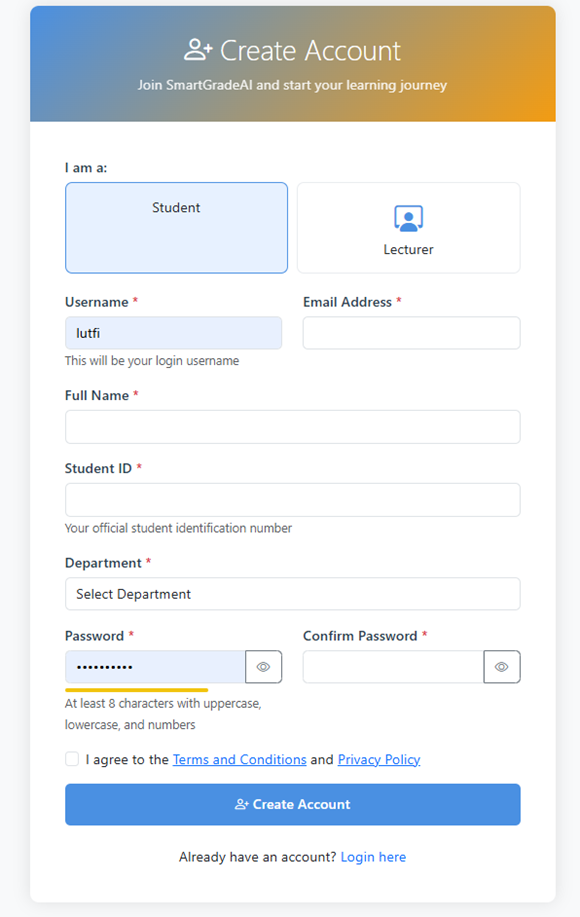
How to Register
Visit the registration page: https://smartgradeai.polimas.net/register.php
Select your role: Choose "Student" from the available options
Fill in your Username - This will be your login identifier
Enter your Email Address - Make sure it's valid for account verification
Provide your Full Name as it appears on official documents
Enter your Student ID - Your official student identification number
Select your Department from the dropdown menu
Create a strong Password (minimum 8 characters with uppercase, lowercase, and numbers)
Confirm Password - Re-enter your password to ensure accuracy
Agree to the Terms and Conditions and Privacy Policy
Click "Create Account" to complete registration
Registration Form Preview
Login to Your Account
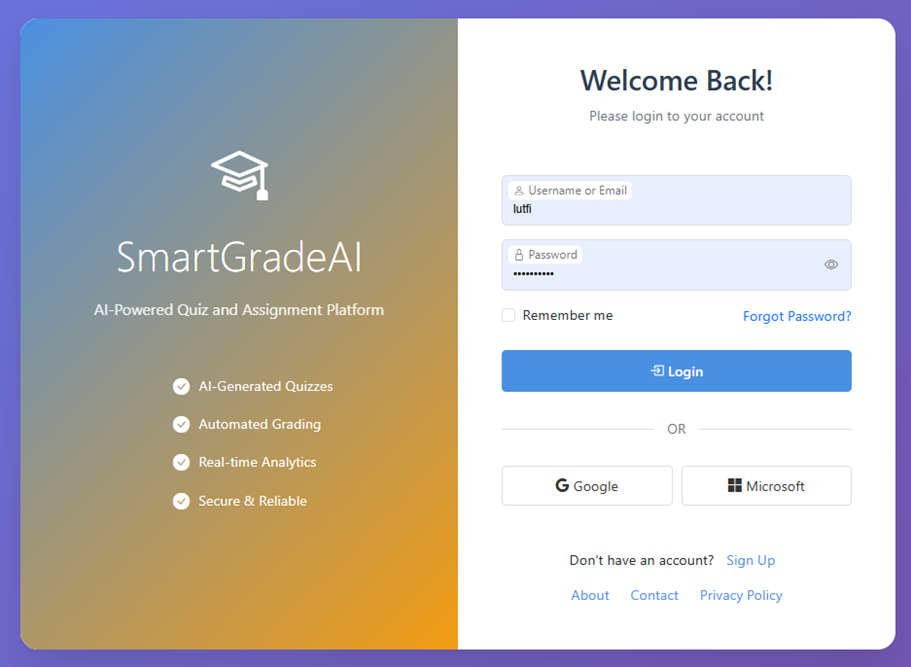
Login Process
Navigate to: https://smartgradeai.polimas.net/login.php
Enter your Username or Email in the designated field
Input your Password
Check "Remember me" if you want to stay logged in
Click "Login" to access your account
Alternatively, use Google or Microsoft social login options
If you forgot your password, click "Forgot Password?" for recovery
Platform Features
SmartGrade AI offers AI-Generated Quizzes, Automated Grading, Real-time Analytics, and a Secure & Reliable learning environment.
Login Screen Preview
Course Enrollment
How to Enroll in Courses
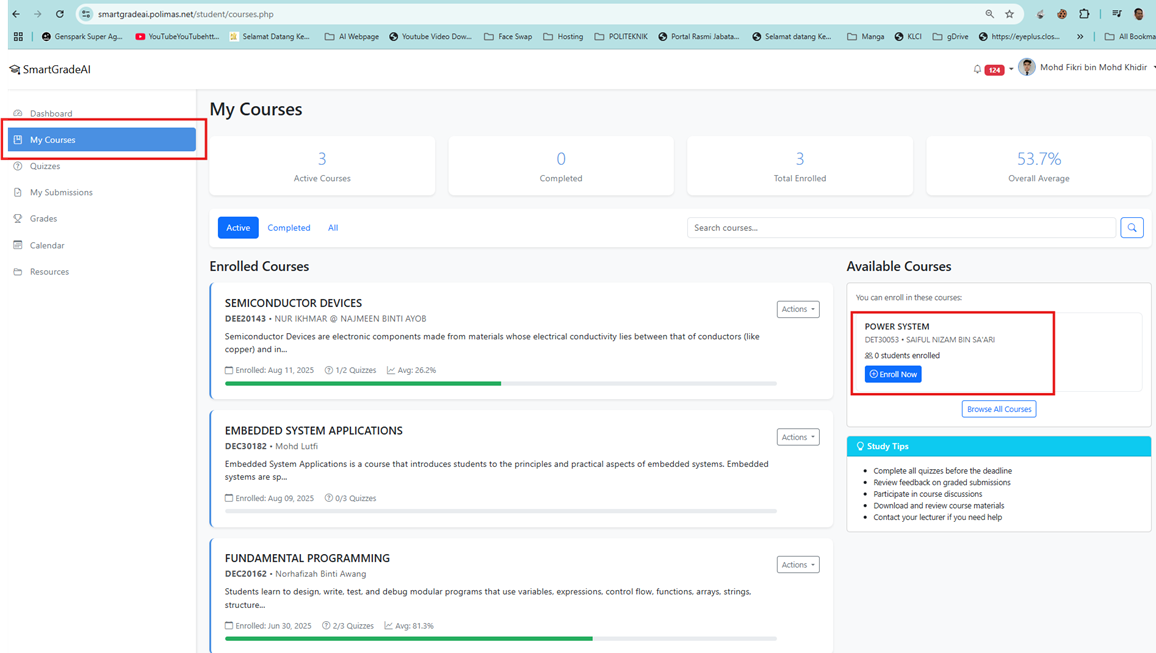
After logging in, you'll be directed to the "My Courses" dashboard
View your course statistics: Active Courses, Completed, Total Enrolled, and Overall Average
Browse the "Available Courses" section on the right side
Click "Enroll Now" button for courses you want to join
Use the search function to find specific courses
Filter courses using the tabs: Active, Completed, or All
View enrolled courses with progress bars and completion status
Study Tips
- • Complete all quizzes before the deadline
- • Review feedback on graded submissions
- • Check course announcements regularly
- • Download and review course materials
- • Contact your lecturer if you need help
Course Dashboard Preview
Taking Quizzes
Quiz Navigation
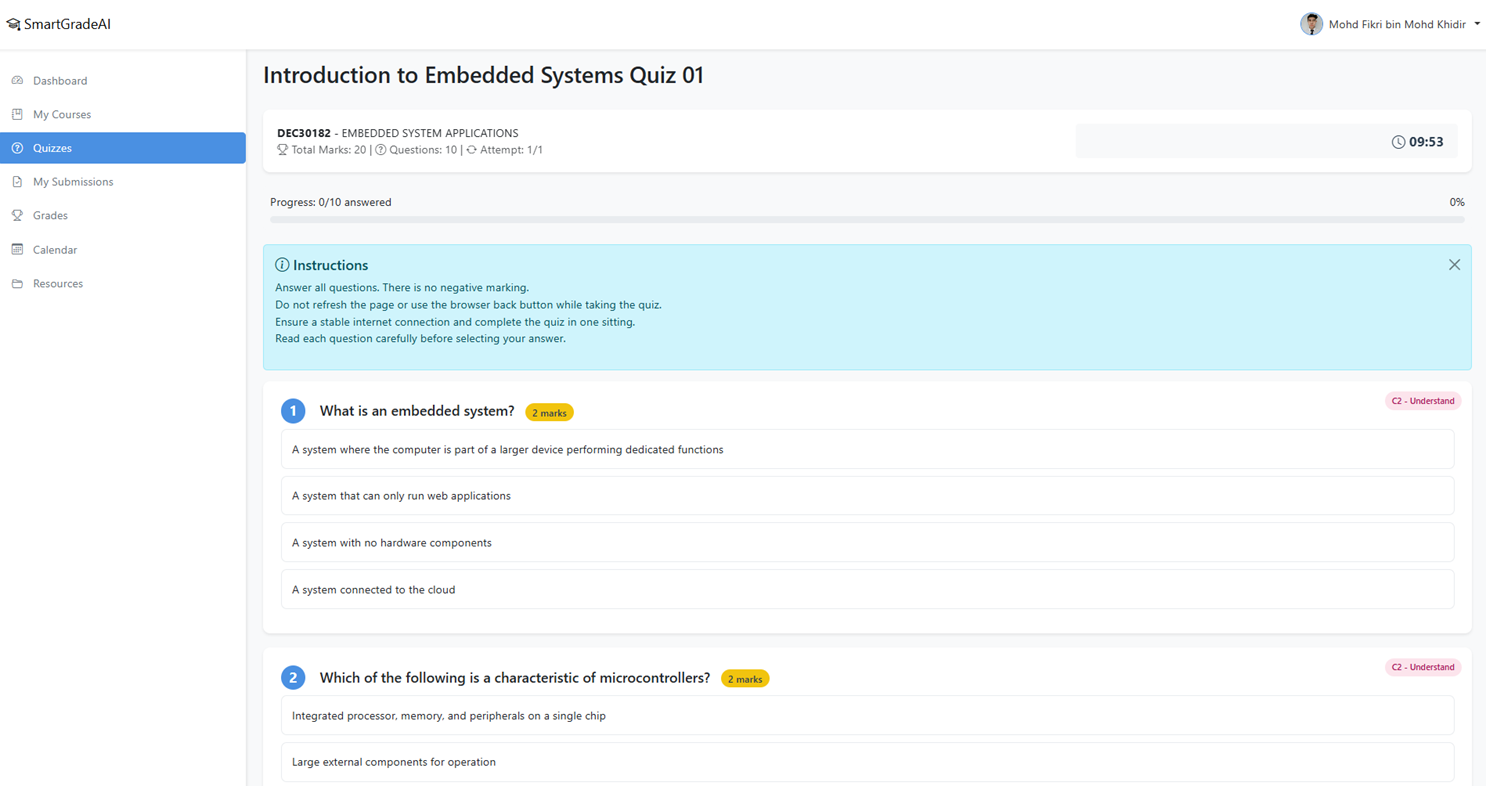
Navigate to the "Quizzes" section from the left menu
Select an available quiz from your enrolled courses
Click "Start Quiz" button to begin
Read all instructions carefully before starting
Monitor your progress with the progress bar at the top
Answer questions by selecting the appropriate multiple-choice options
Navigate between questions using the navigation controls
Submit your quiz when completed
Important Quiz Instructions
- • Answer all questions - There is no negative marking
- • Do not refresh the page or use browser back button
- • Ensure stable internet connection
- • Complete the quiz in one sitting
- • Read each question carefully before answering
Quiz Interface Preview
Need Help?
FAQ
Check our frequently asked questions for quick answers to common issues.
Email Support
Contact our support team via email for detailed assistance with your account.
Live Chat
Get instant help through our live chat support during business hours.
Ready to Start Your Learning Journey?
Join thousands of students already using SmartGrade AI to enhance their learning experience.